
Stag & rhino beetle records, plus a Raise & Battle Game
Every joy, remembered for life!
From each beetle’s records to labels, bloodlines and connecting with other breeders.
KKLOG is a keeping and breeding record app for stag and rhino beetle breeders. It supports your keeping every day, with everything from a log for each beetle and its larval growth chart to beetle labels with QR codes, printed in a layout of your own, food change alerts and a schedule calendar, breeding memos, and “Community beetles”, where you connect with other breeders. There’s also the Raise & Battle Game, where you raise beetles from eggs. You can play it on Apple Watch, too.
- App StoreiPhone and Apple Watch
- Google PlayAndroid
- Web versionIn your browser
- Price
- Free (with an optional paid plan, KKLOG Plus)
- Devices
- iPhone, iPad, Android and the web. Log in with the same account to see the same records on any of them.
- Languages
- Japanese, English, Simplified Chinese, Traditional Chinese, Korean, Thai and Indonesian
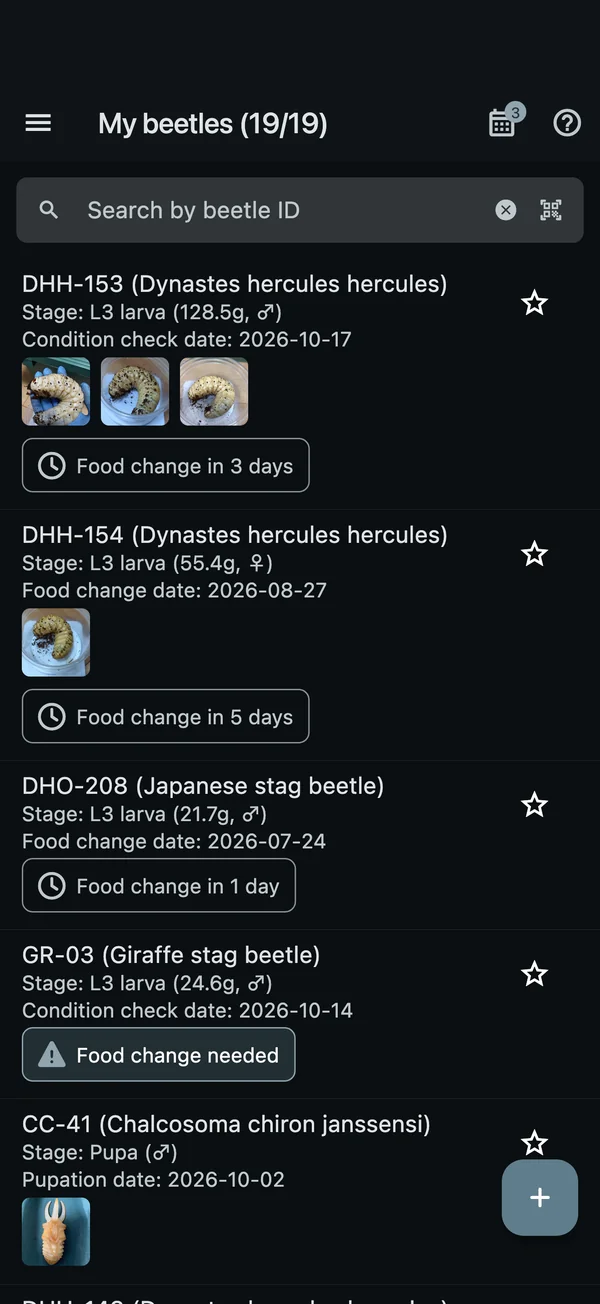
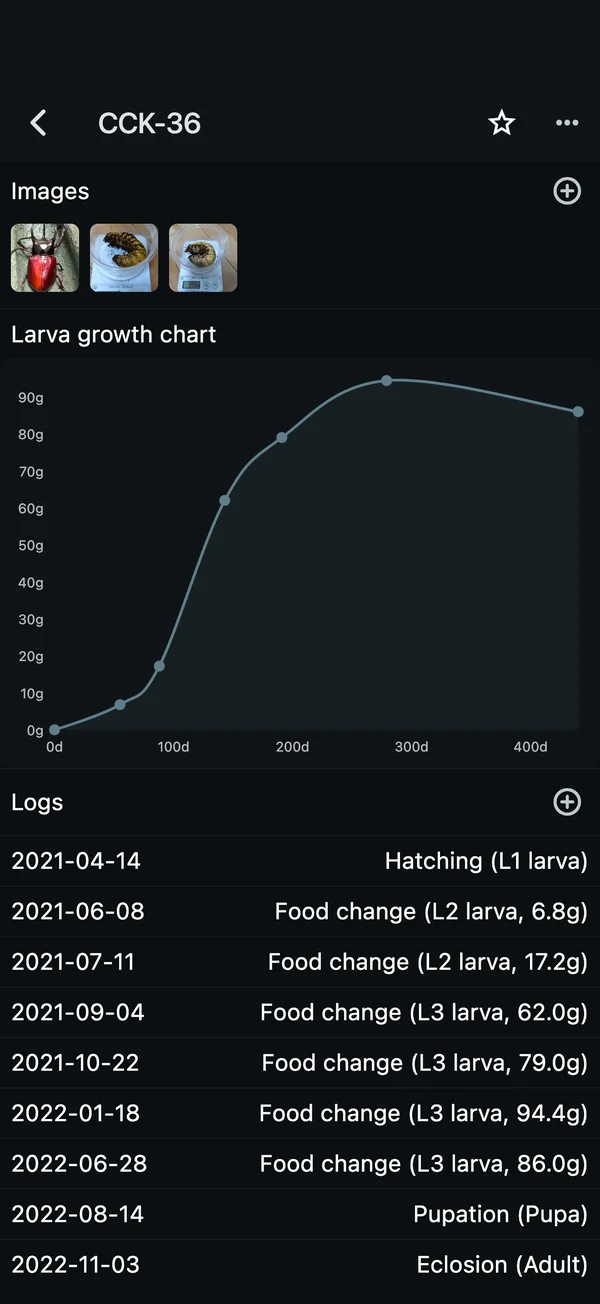
Log each beetle, watch it grow
Add a beetle with its beetle ID and species, then just keep logging. Log a food change, pupation or eclosion, and the beetle’s stage, hatching date and eclosion date all update automatically.
- Easy registration
Pick species, sex, generation and more from lists. Choose a stage when you add a beetle and its first log is created automatically. You can also start its records from a wild collection or a purchase.
- Logs
Record weight, head width, container, food and notes by date. Pick a log type such as condition check, food change, hatching, pupation, eclosion, first feeding or harvest.
- Larva growth chart
Logged larva weights are charted against days since hatching. See at a glance where the weight shot up.
- Photos
Keep photos of each beetle: how it grew, and how it looked when it eclosed, all with its records.
- Locality, bloodline and generation
Locality, bloodline, parent ♂ and parent ♀, and generation (WD, F1, CBF1 and more) for every beetle. Choose parents from the adults you’ve added and trace the bloodline back.
- Saved to the cloud
Your records are saved to the cloud. When you change phones, log in with the same account and carry on where you left off.
My beetlesDays until the next food change, right in the list 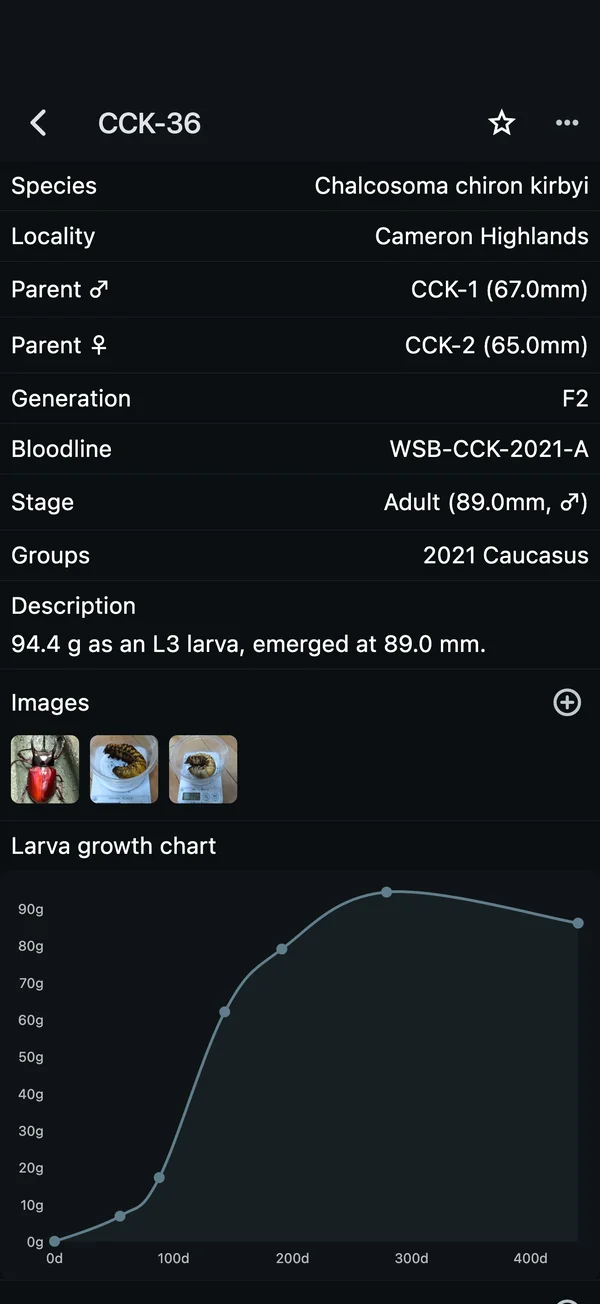
Beetle infoLocality, parents, generation and bloodline for every beetle Photos and larva growth chartSee weight gain at a glance 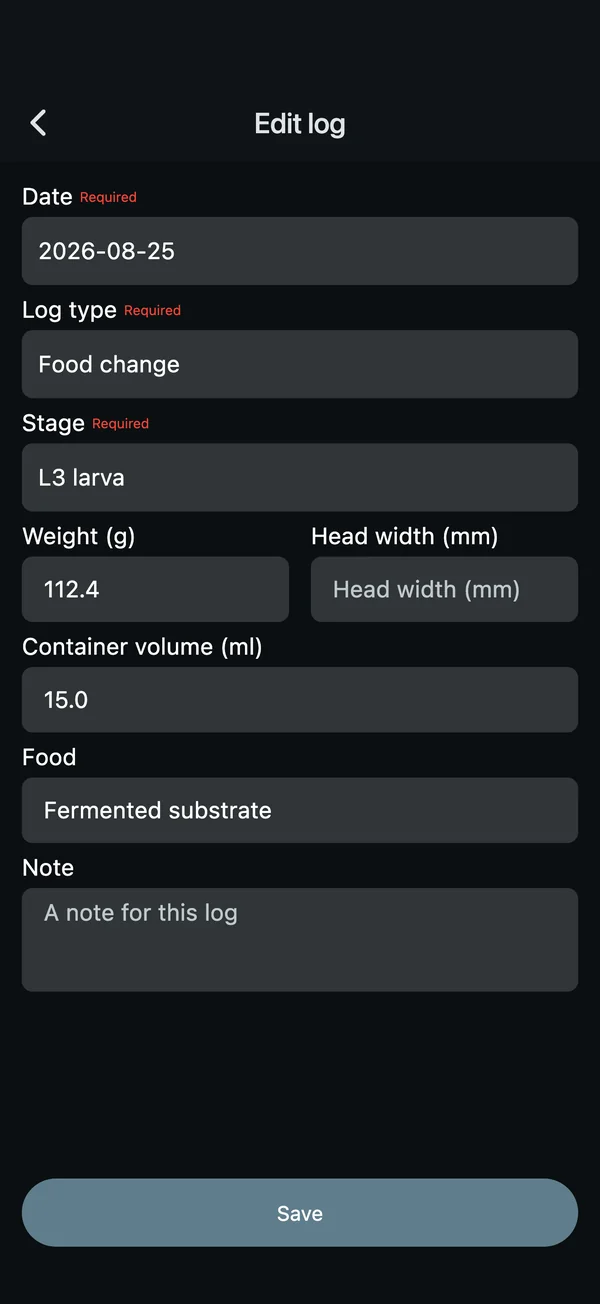
LogsWeight and food, by date
- Beetle info
- Beetle ID, Species, Locality, Parent ♂, Parent ♀, Generation, Sex, Length, Bloodline, Groups, Description, Photos
- Log fields
- Date, Log type, Stage, Weight, Head width, Container volume, Food, Note
- Log types
- Condition check, Food change, Hatching, Pupation, Eclosion, First feeding, Mating, Harvest, Wild collection, Purchased / received, Death, Transfer, Other
- Stages
- Egg, L1 larva, L2 larva, L3 larva, Prepupa, Pupa, Adult, Unknown
Print case labels in a layout of your own
Make labels for your breeding cases from your beetles’ info. Drag the items you want, such as species, scientific name, generation, eclosion date and a QR code, to wherever you like, and print straight onto A4 label sheets. Scan the QR code on a case and that beetle’s page opens right away.
- Choose beetlesChoose the beetles to print and set how many labels each one gets. From “…” on a beetle’s screen, print just that one right away.
- Choose or make a layoutEach sheet type comes with three layouts. With “Edit layout”, drag items to move them and resize them by their corners.
- Print on A4 sheetsCheck the result in the preview, then print. You can also share it as a PDF.
- From QR code to beetleScan a label’s QR code with your phone’s camera, or with the QR button in the My beetles search field, and that beetle’s page opens.
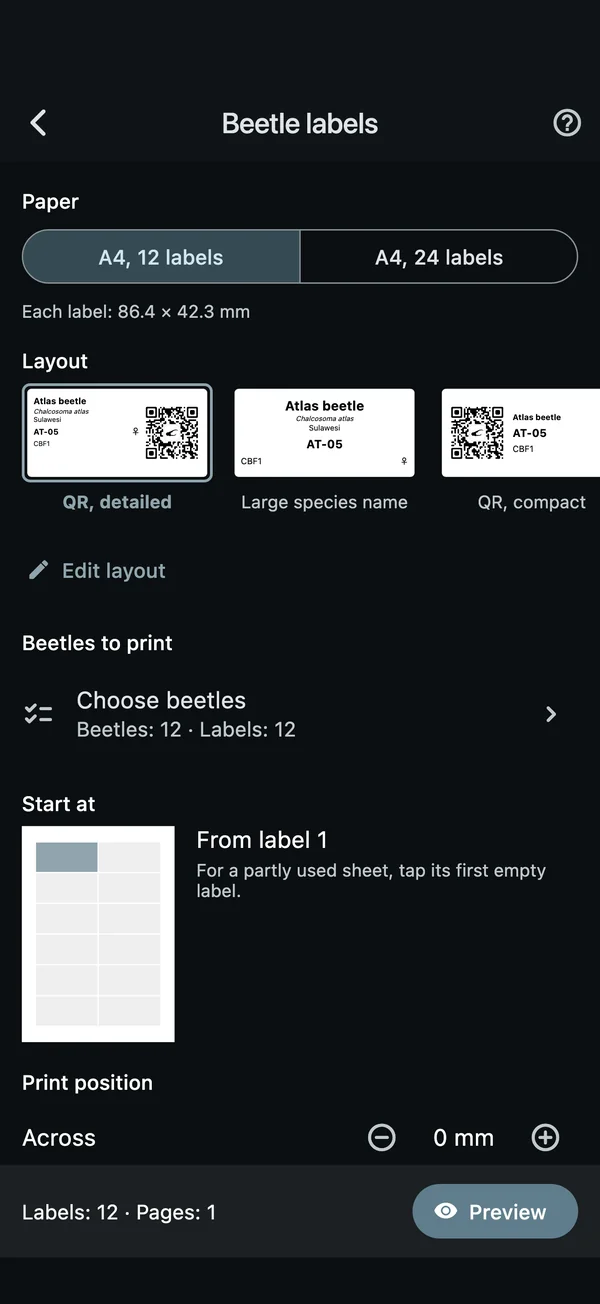
Choose paper and beetlesStart a partly used sheet where it’s empty 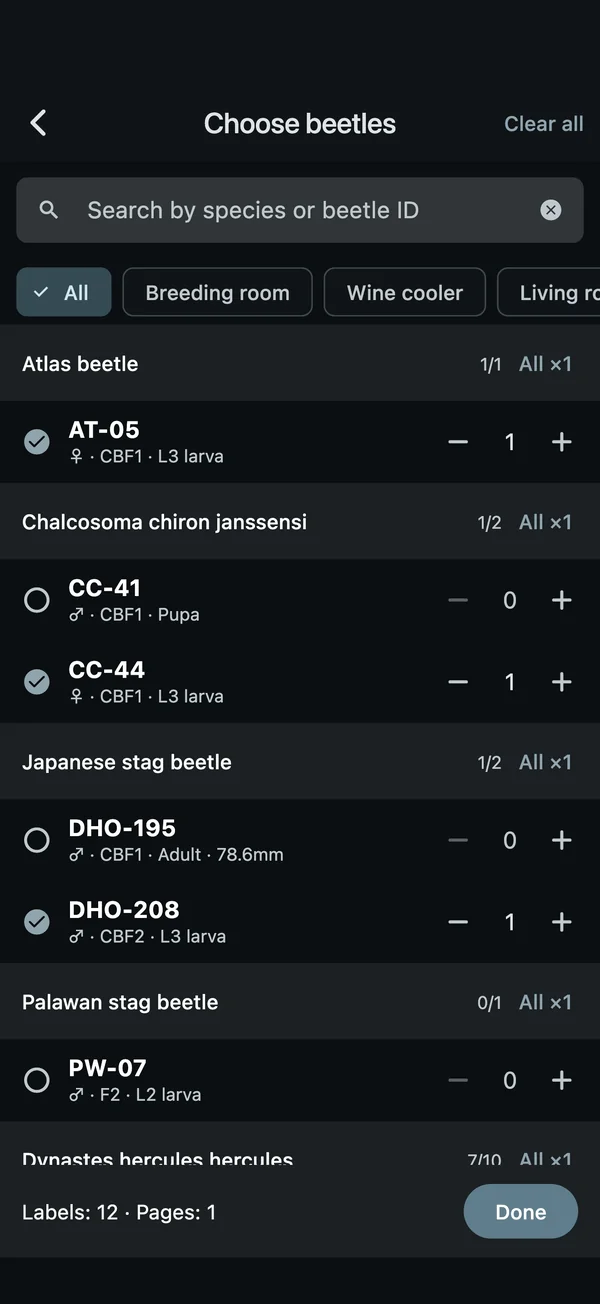
Beetles to printPick several from the list at once 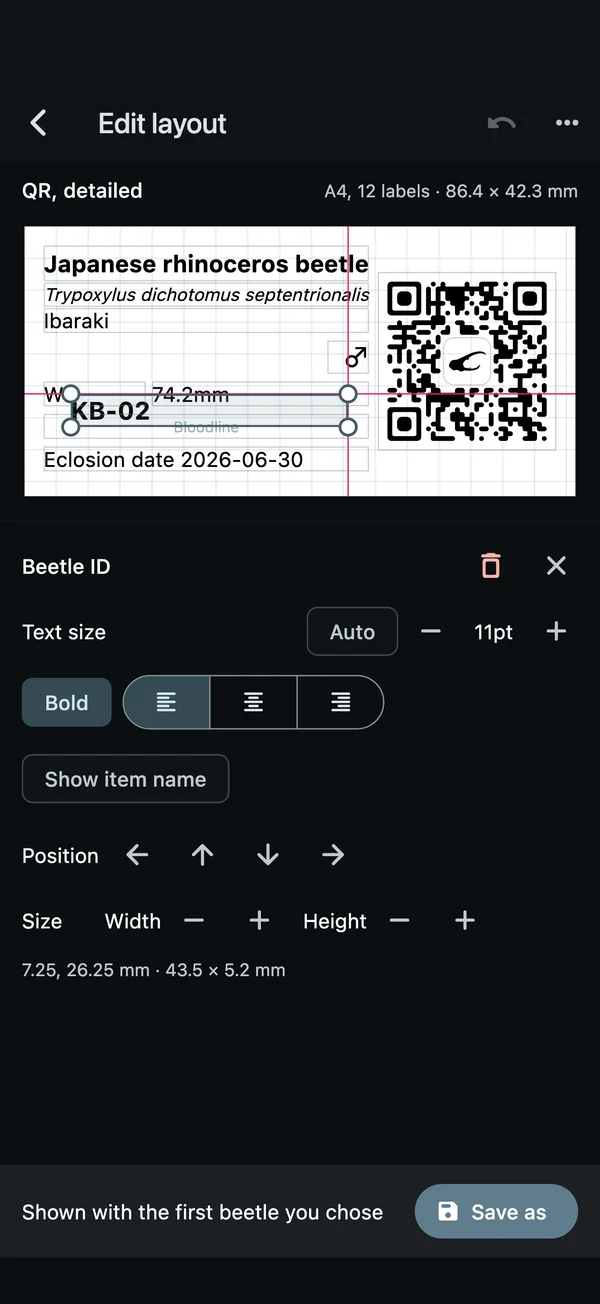
Edit layoutDrag items and they snap into line 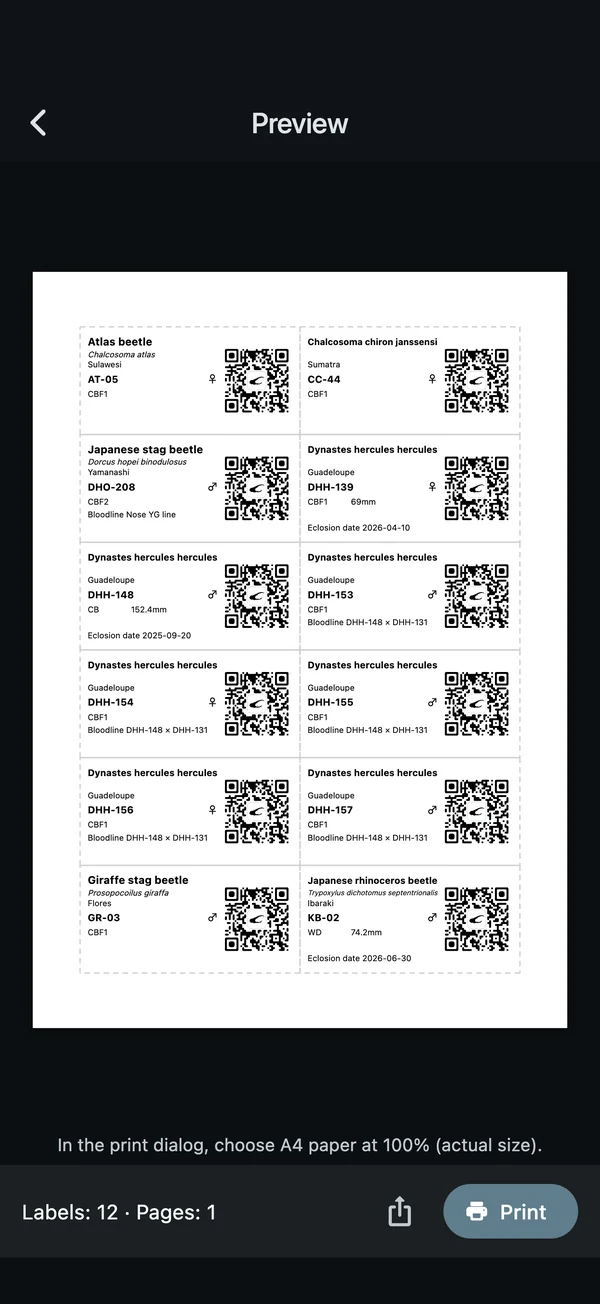
PreviewCheck the result before printing 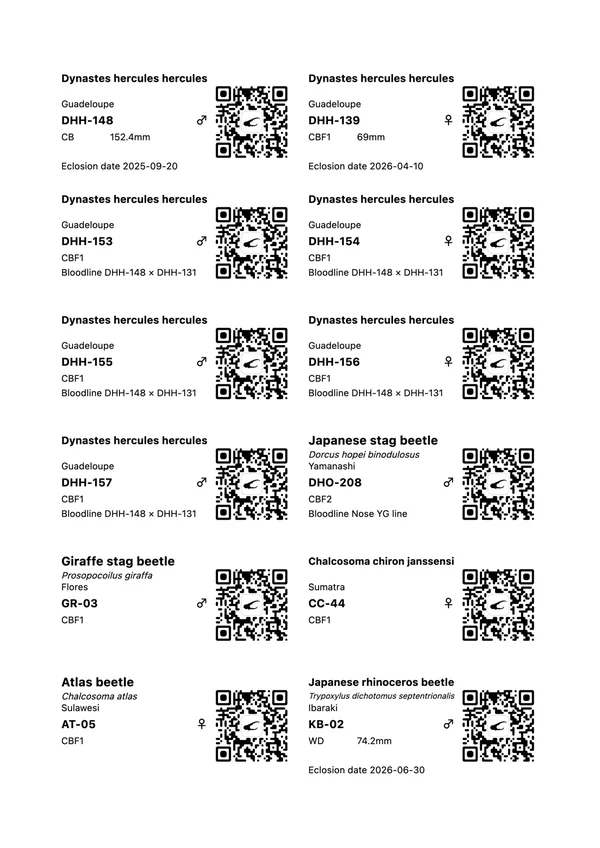
The printed pageStraight onto A4 label sheets 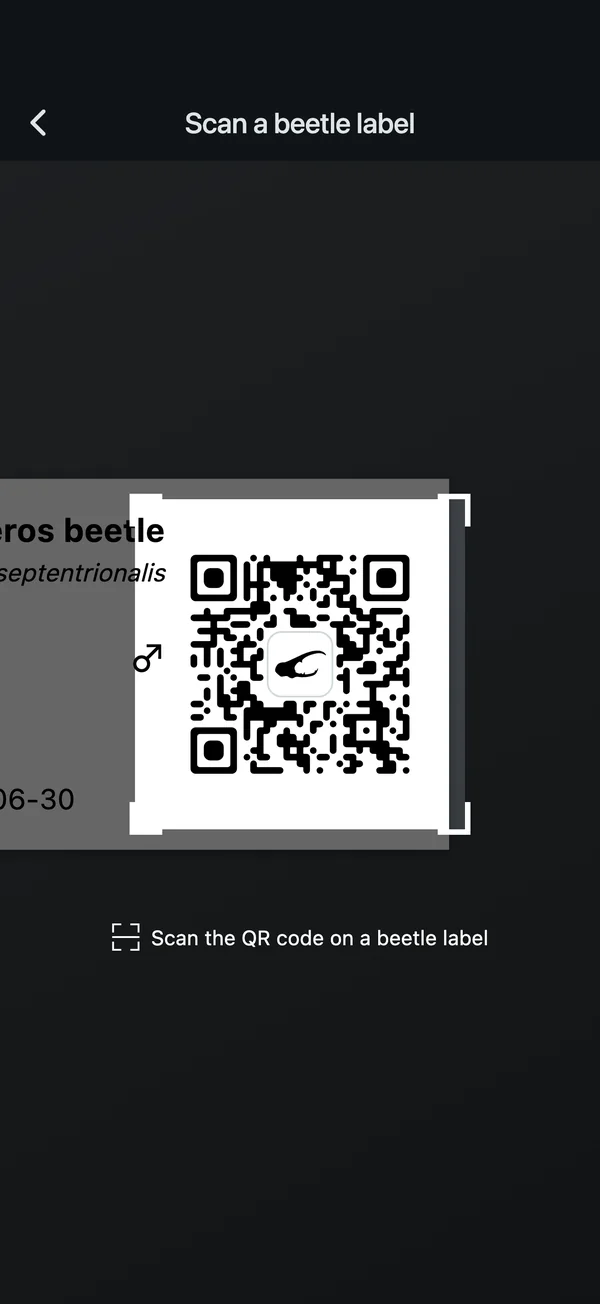
Open with a QR codeFrom the search field’s QR button to the beetle
- A4 sheets of 12 or 24 labels
For a partly used sheet, tap its first empty label to start printing there. If the print doesn’t line up with the sheet, you can adjust the position for each device.
- Put each item where you want it
Species, scientific name, sex, generation, locality, length, weight, beetle ID, eclosion date, bloodline, breeder and QR code, plus free text. Choose the text size, weight and alignment, and items snap to a 1 mm grid and to the edges of other items as you move and resize them.
- One scan to the beetle’s page
Scan the QR code in front of the case to check logs and photos on the spot. Your own beetles open as usual, and beetles you haven’t made public aren’t shown to anyone else.
- Print directly, or as a PDF
Print on your own printer with the iPhone or Android print feature. When printing, set the paper to A4 and the scale to 100%.
- Label printing is free for everyone
- Three ready-made layouts, plus editing
- QR codes and scanning
You can save one layout of your own for free. With KKLOG Plus, you can save as many as you like.
Find the beetle you need, right away
Even as your collection grows, search by beetle ID, filter and sort to list just the beetles you want to see. To split them up by shelf or room, use Groups.
- Search by beetle ID
Type a beetle ID into the My beetles search field to find it right away. The QR button in the search field scans a beetle label’s QR code to open that beetle.
- Filter
Filter by species, stage, sex or listing. You can also choose “Only beetles with a food change due soon or now”, and whether to include deceased and transferred beetles.
- Sort
Sort them the way you want: “Food change due (soonest first)”, “Larva weight (heaviest first)”, “Adult length (largest first)”, “Eclosion date (newest first)” and more.
- Groups
Organize your beetles into groups that match where you actually keep them, like a breeding room, a shelf or a greenhouse.
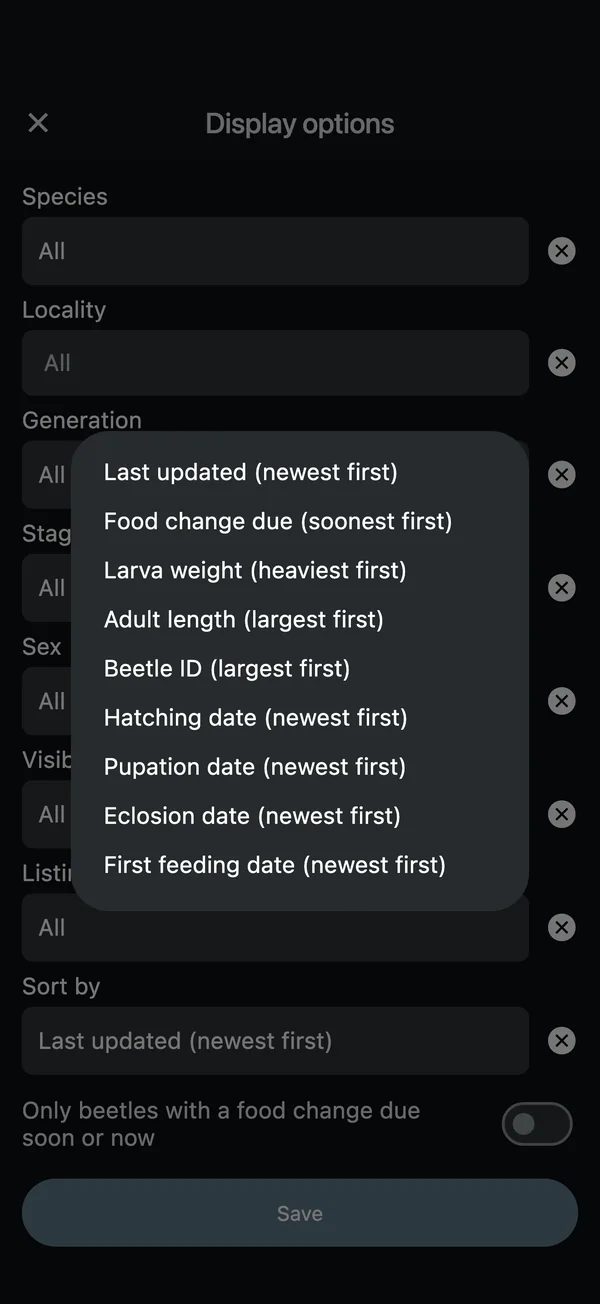
Display optionsSort and filter 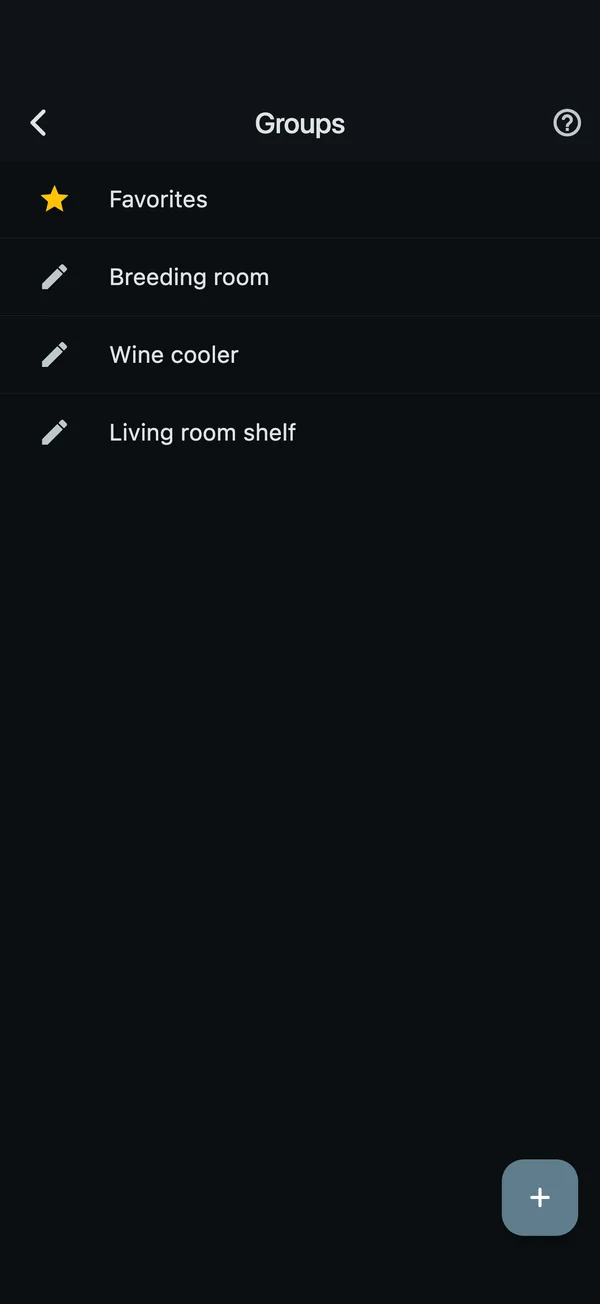
GroupsBy shelf or room
Never miss a food change or harvest
Set a food change interval for each species, and beetles nearing their due date show “Food change in X days”, while beetles past it show “Food change needed”. The Schedule calendar shows your food changes and harvests month by month.
- Food change alerts
Set the days until a food change for each of L1, L2 and L3. When you add a beetle, its species gets an interval automatically, which you can change in “Food change alert settings”.
- Schedule calendar
Food change due dates and target harvest dates on a monthly calendar. Tap an entry to open that beetle or breeding memo.
- Notifications
Notifications arrive in the iPhone and Android apps at the time you set (once a day at most). Choose “Start reminders” and “Notification time” in “Reminder settings”.
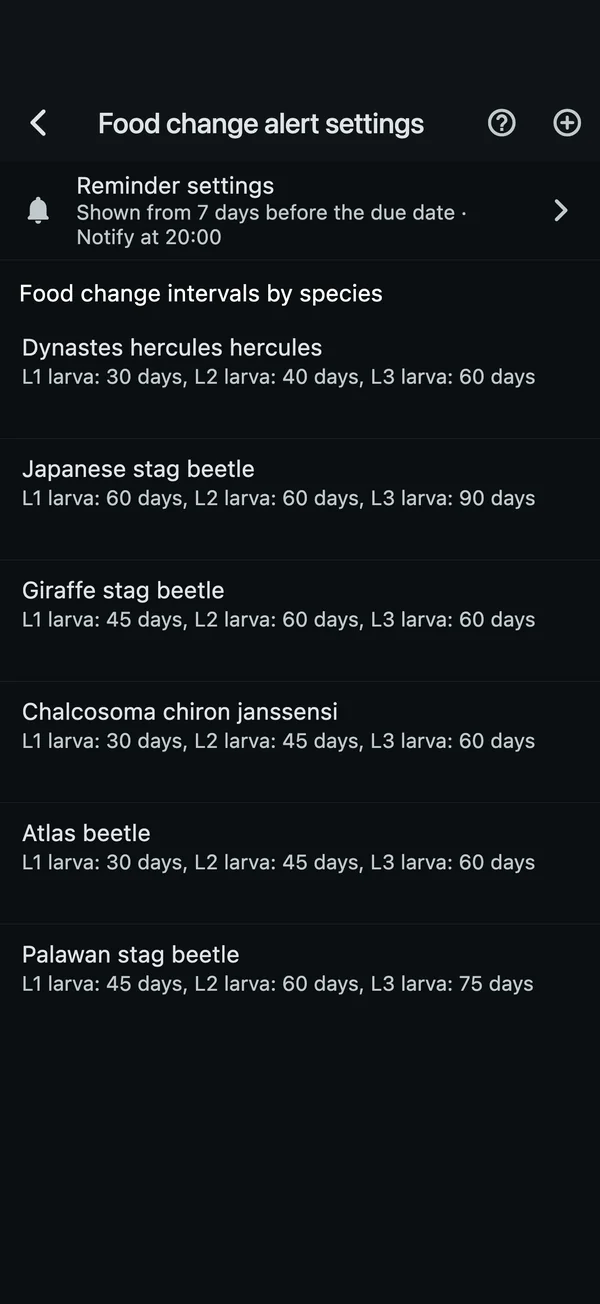
Food change alert settingsIntervals by species and instar 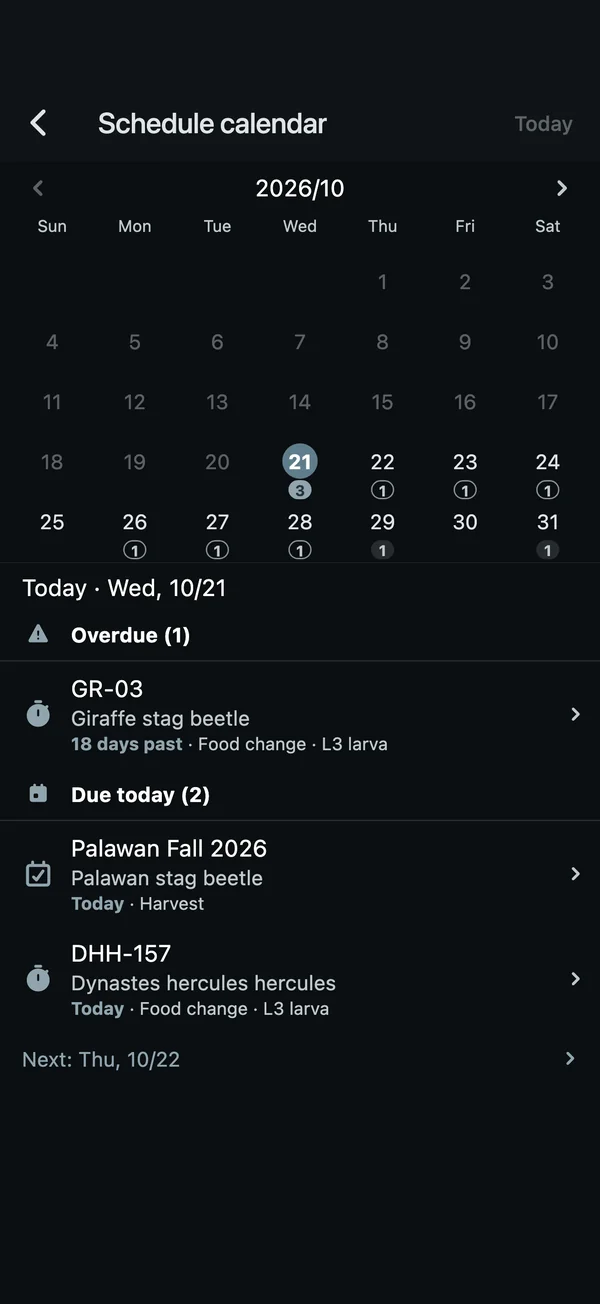
Schedule calendarToday’s tasks and what’s next 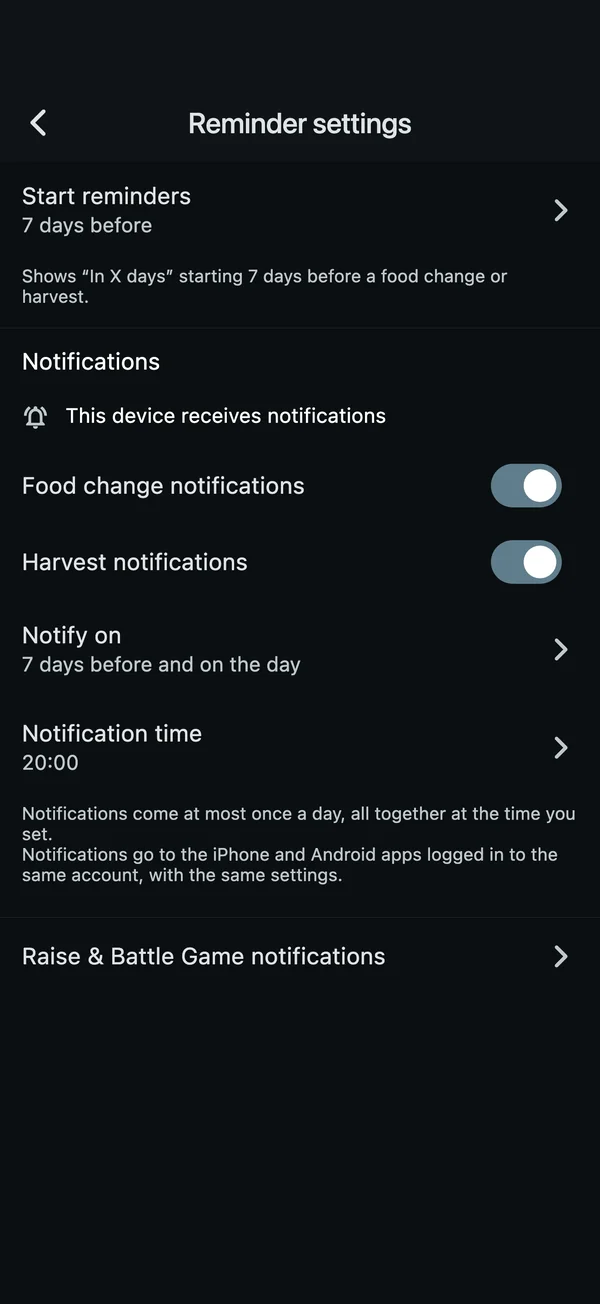
Reminder settingsChoose the notification time, too
Bloodlines and offspring, all in a breeding memo
Make a breeding memo for each pair (or mated female) and keep everything from the laying set and harvest to registering the next generation in one place. Enter the laying set date and the days until harvest, and you’ll get a reminder as the harvest approaches.
- Harvest log
Record how many eggs and larvae you harvested on the day. You can also note whether you continued the laying set with the same female or ended it.
- Register offspring
Register harvested eggs and larvae as beetles all at once, just by entering how many. They inherit the parents’ info, and beetle IDs are assigned automatically as “prefix-harvest date-number”.
- Offspring bloodline and generation
Set the next generation’s bloodline name, generation and description in the memo ahead of time.
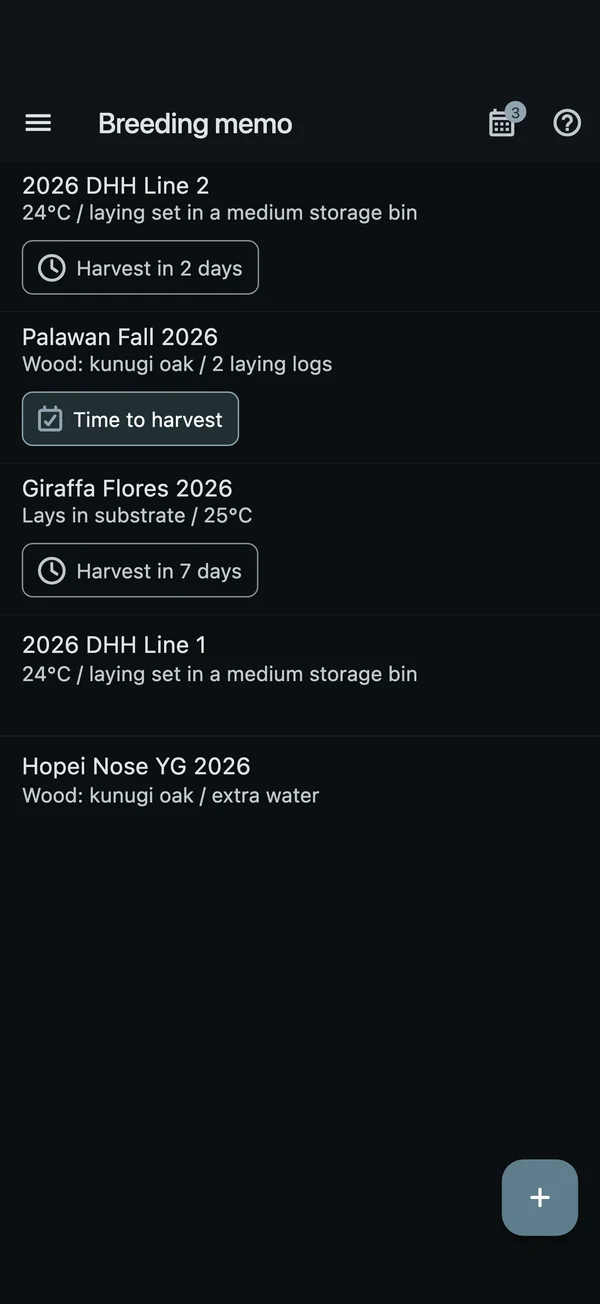
Breeding memosHarvest timing, right in the list 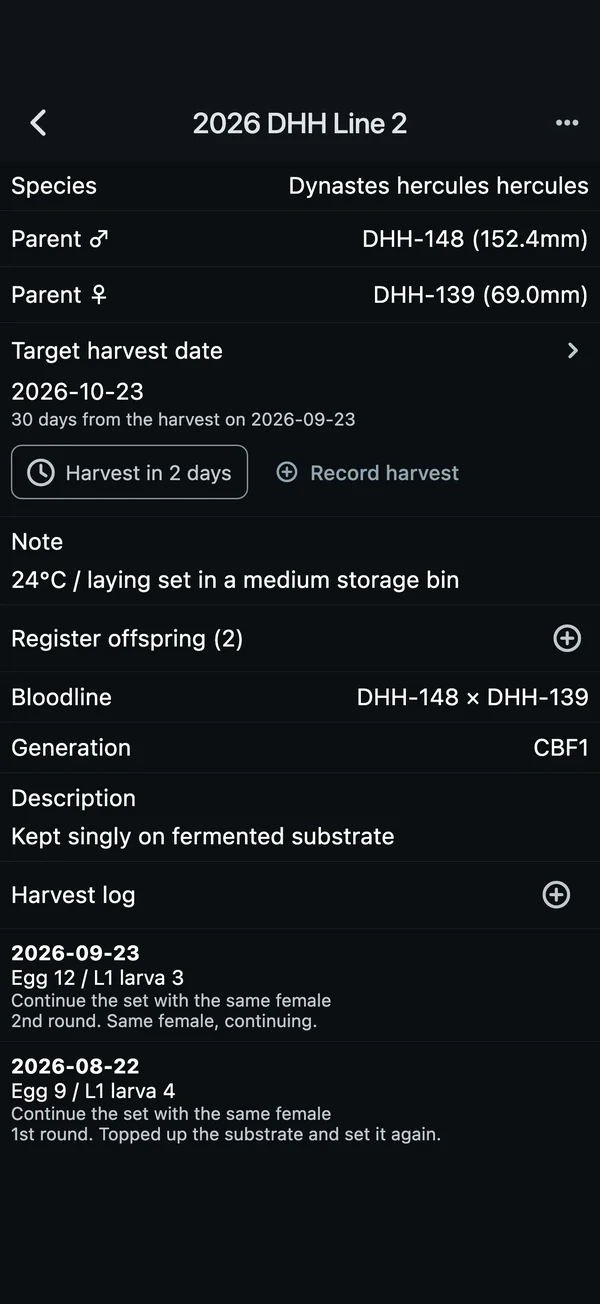
Inside a breeding memoParents, target harvest date and harvest log 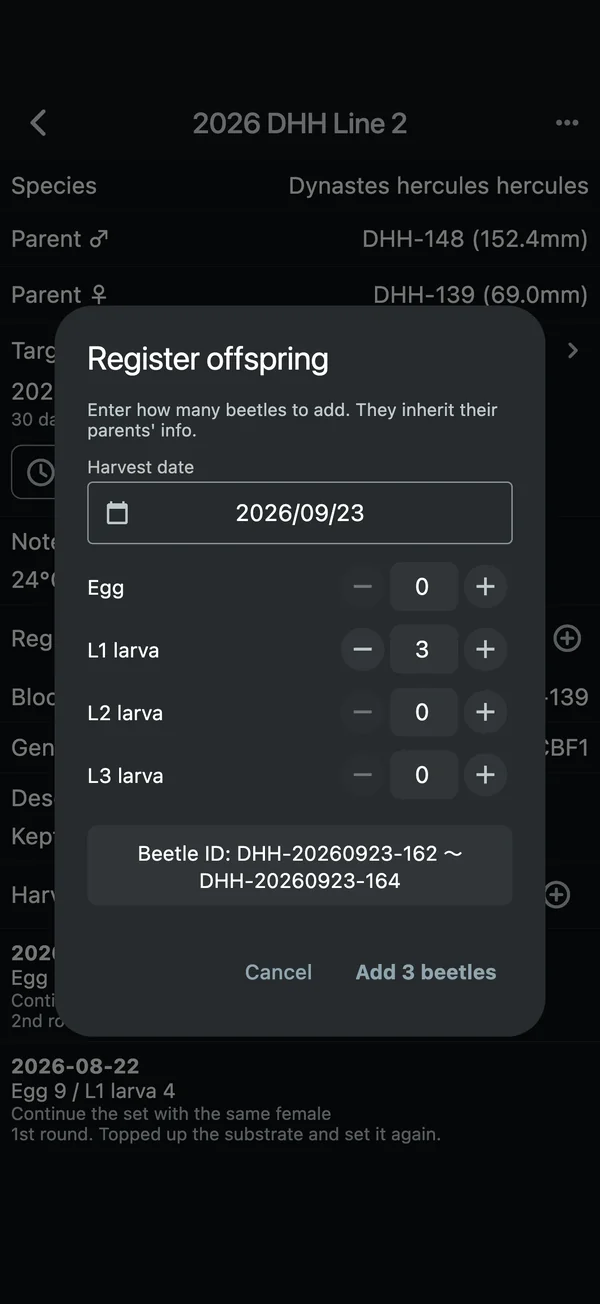
Register offspringAdd harvested larvae all at once
Connect with fellow breeders
Beetles you make public appear in “Community beetles”. See how other breeders’ beetles are growing and where their bloodlines come from, and follow the breeders who catch your eye to check on them all in “Following”.
- Likes
Like the beetles you love. You’ll get a notification when one of your beetles gets a like or someone follows you.
- Profile
The beetles you keep are counted by species and shown in charts for adults and larvae. Your public beetles and your Raise & Battle Game card are on the same page, and you can share it with a link.
- Follow
Follow the breeders who catch your eye, and visit their profiles anytime from your “Following” and “Followers” lists.
- My QR
When you meet breeders at an event or elsewhere, show each other your QR codes with “Add friend” and follow on the spot.
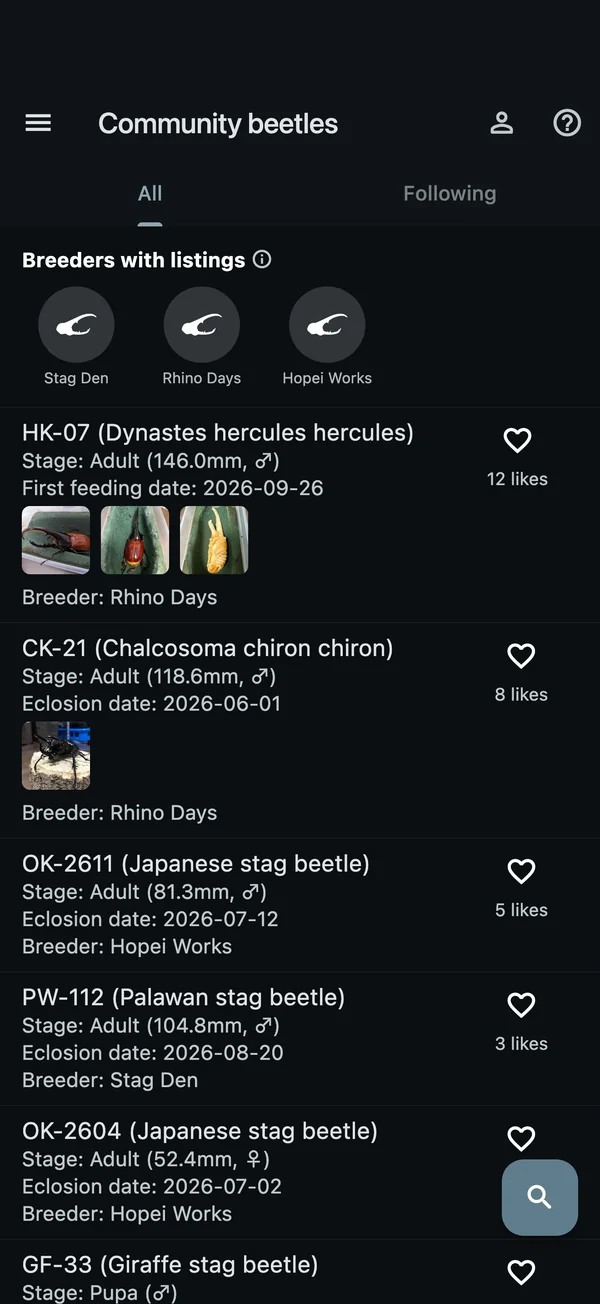
Community beetlesOther breeders’ beetles, too 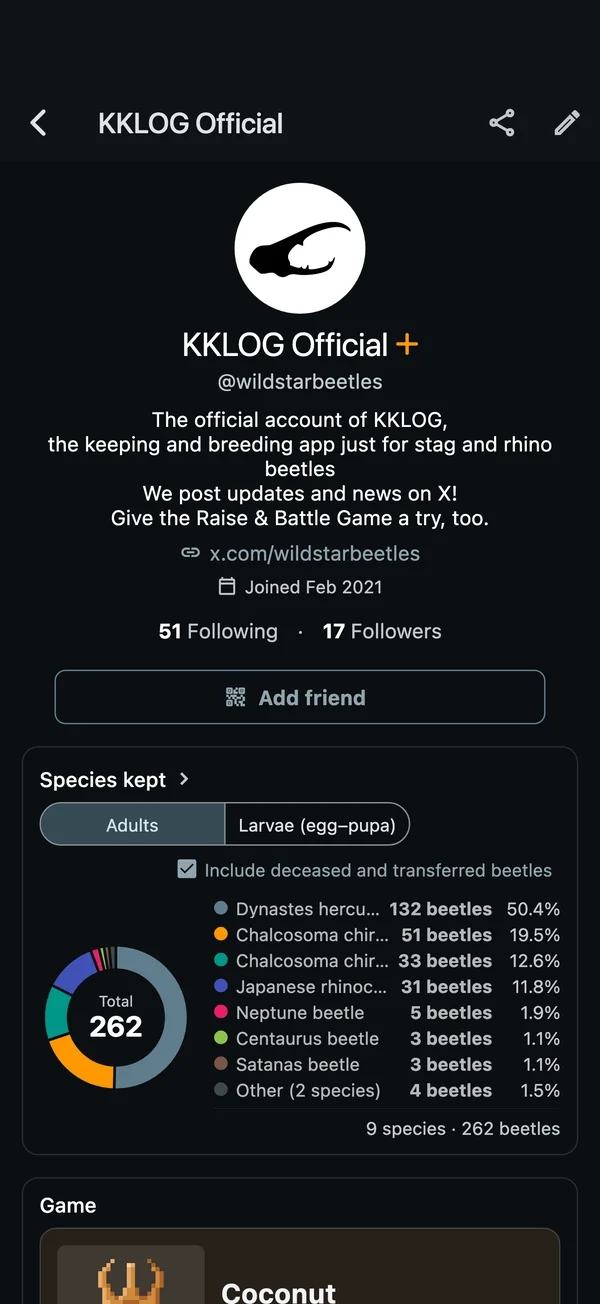
ProfileThe species you keep, at a glance 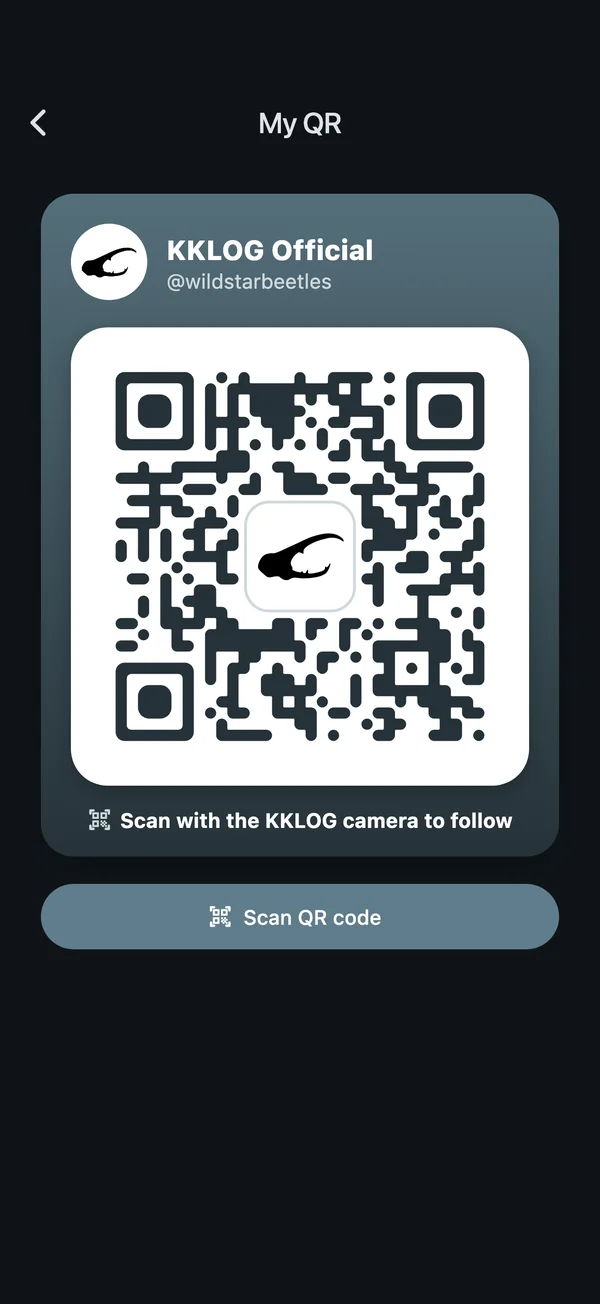
My QRFollow the moment you meet
You can report inappropriate accounts from the menu on their profile.
Pass your beetles on to the next breeder
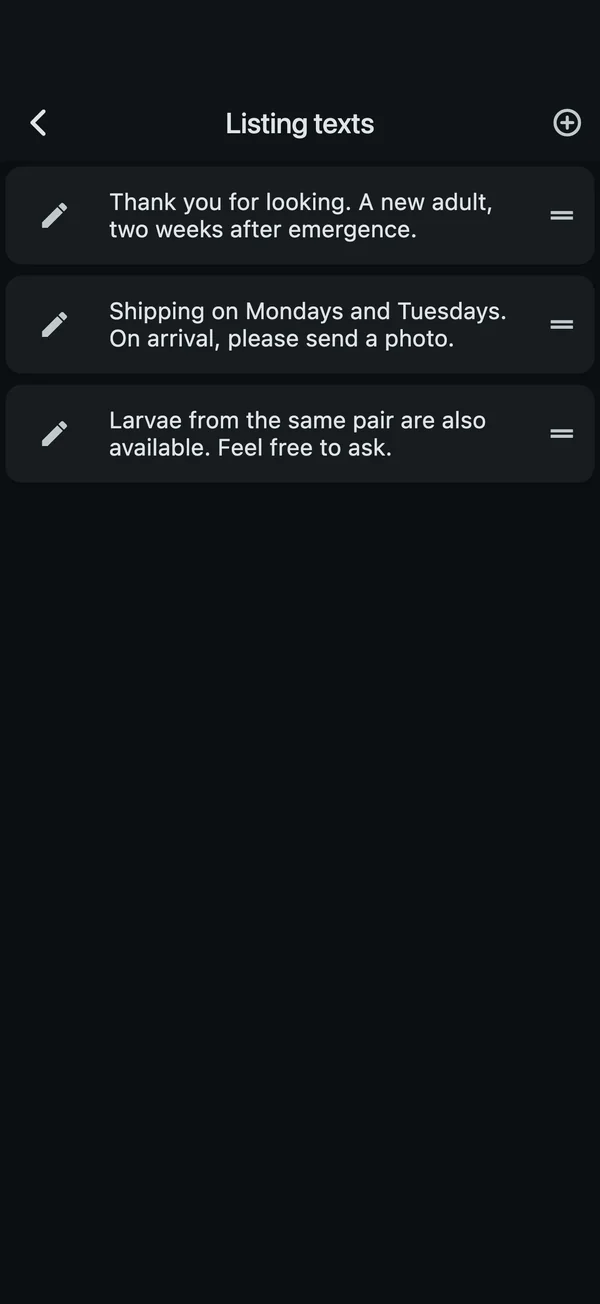
Set a beetle to “Listed” and it appears in Community beetles and on your profile, with a link to its listing page. Save your listing text as a template and copy it with one tap.
- The Listed badge
Set up a listing on a beetle’s edit screen, and the “Listed” badge and a link appear. Breeders with listings line up at the top of Community beetles.
- Templates
Save text you use often, like standard listing text or observation notes, and copy it with one tap. Sort your templates into groups by purpose.
Deals are made between breeders. KKLOG is not involved in any deal.
Handy little extras, too
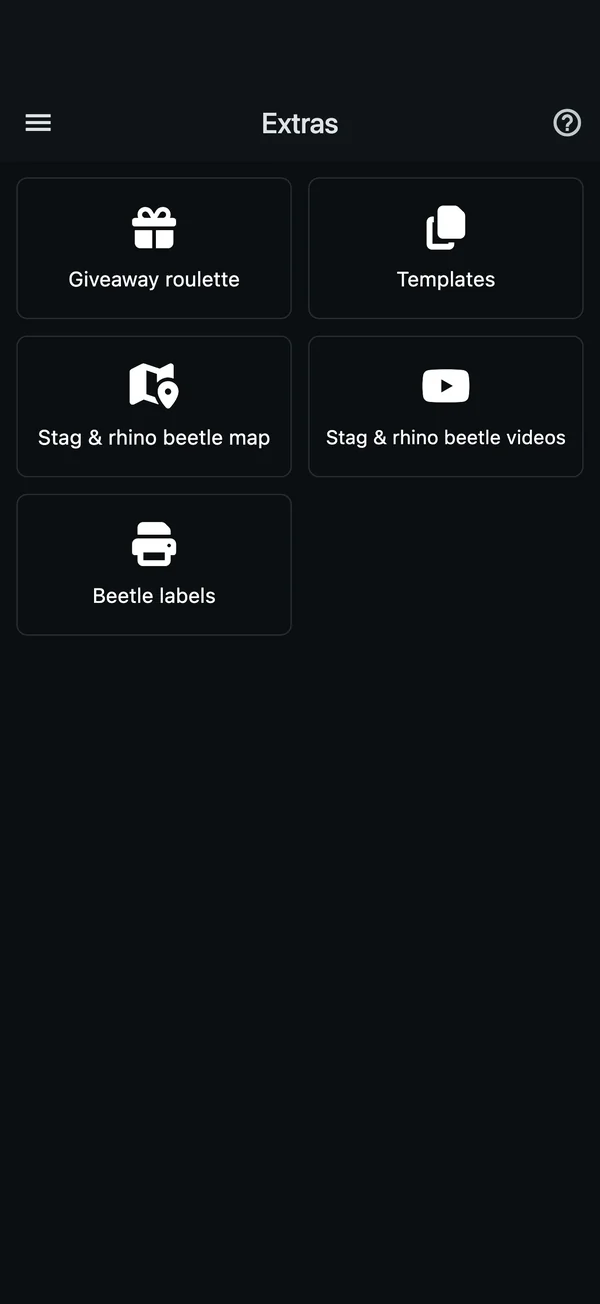
The “Extras” tab brings together handy tools for your beetle keeping.
- Stag & rhino beetle map
Find beetle shops, events and spots where breeders gather on a map (in the iPhone and Android apps).
- Stag & rhino beetle videos
A collection of links to videos that help with keeping. Learn how other breeders keep their beetles.
- Giveaway roulette
A simple roulette: just enter the options and spin. Use it to decide pairings, run draws and more.
- How-to guides
Tap “?” on any tab to see how that screen works.
A Raise & Battle Game that starts with an egg
On KKLOG’s “Game” tab, raise a virtual, game-only beetle from an egg, then take on the forest guardians with Rock, Scissors, Paper. You can also battle friends who follow you back, and the beetles you raise appear in the length rankings for each species.
- Egg

- Larva

- Pupa

- Adult

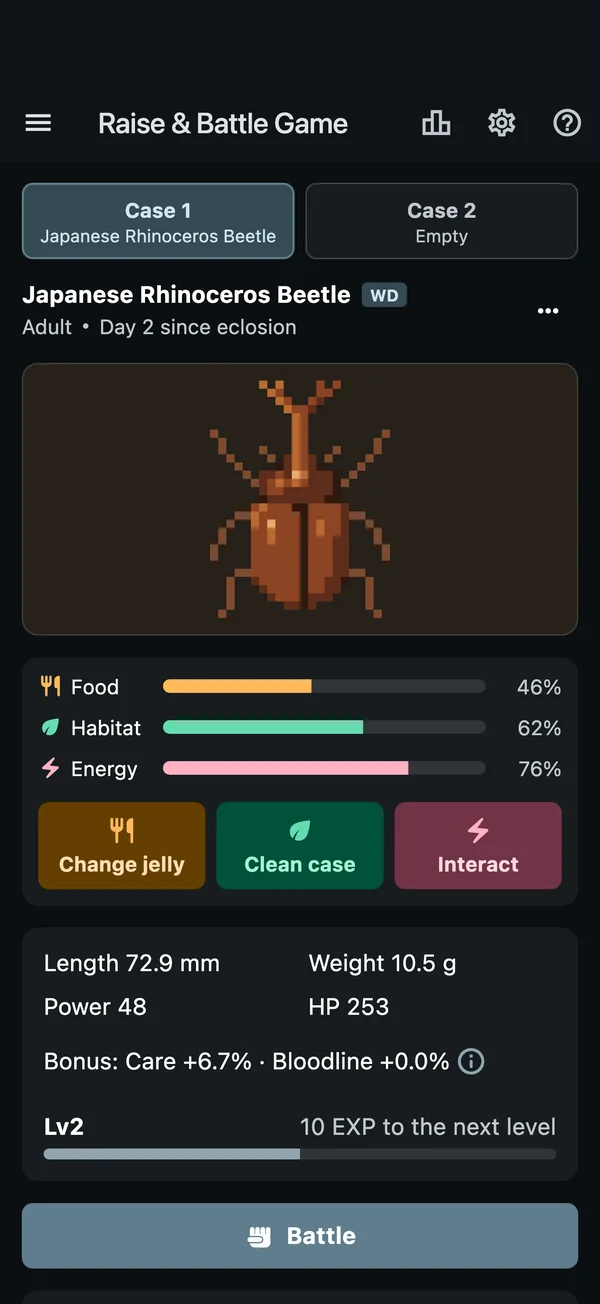
CaseDaily care for a fine adult 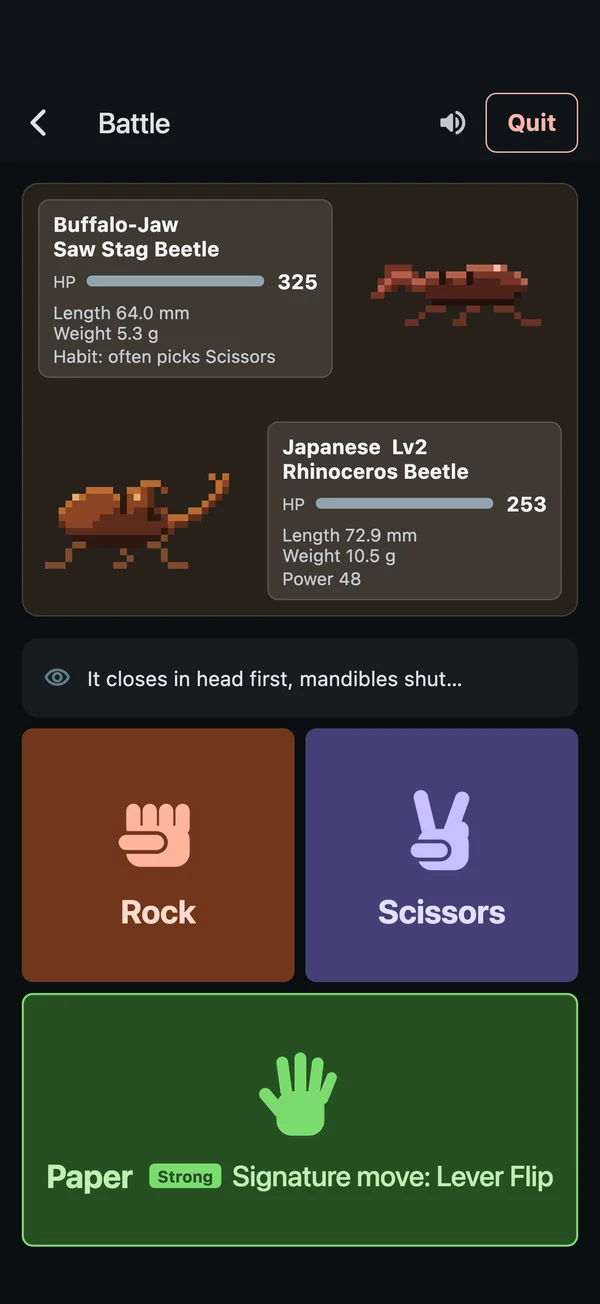
BattleA real Rock, Scissors, Paper showdown 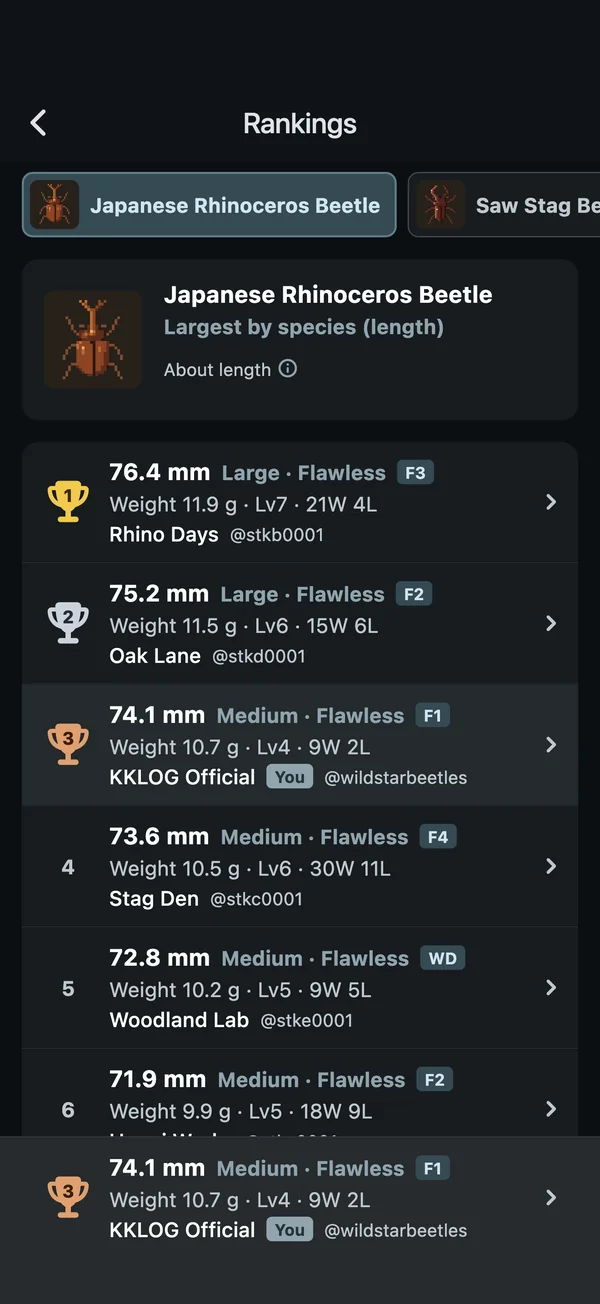
RankingsCompete on length, species by species
The beetles in the game are virtual and exist only in the game. No real beetles are made to fight.
More about the Raise & Battle GameSee how it’s doing without opening the app
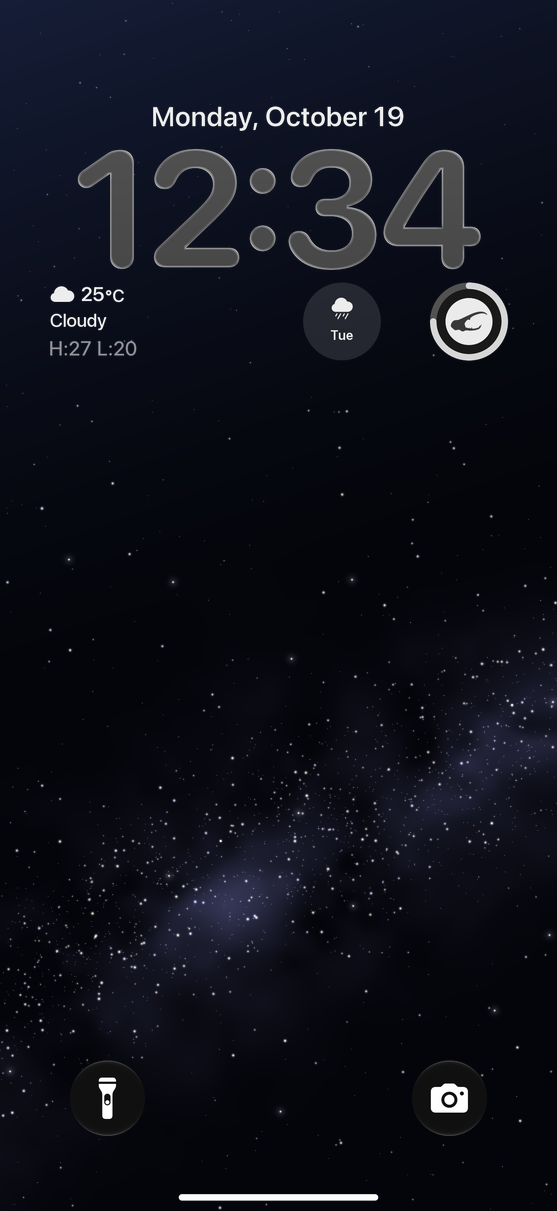
Home Screen and Lock Screen widgets on iPhone and iPad, and Apple Watch, show how your Raise & Battle Game beetle is doing at a glance. On Apple Watch, you can give care right there, too.
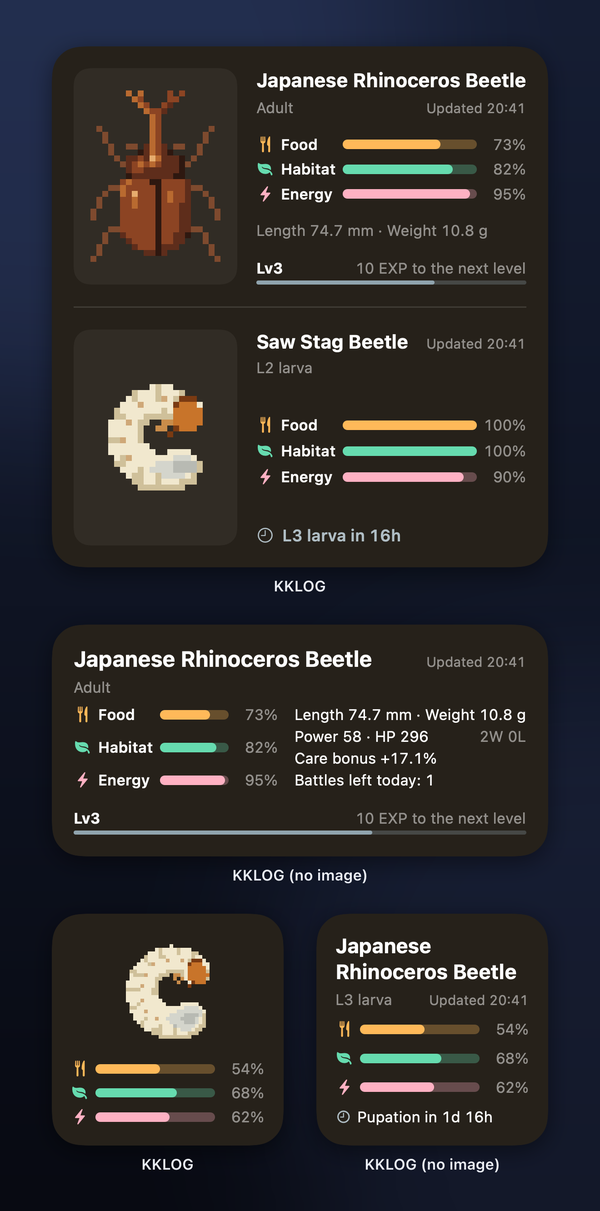
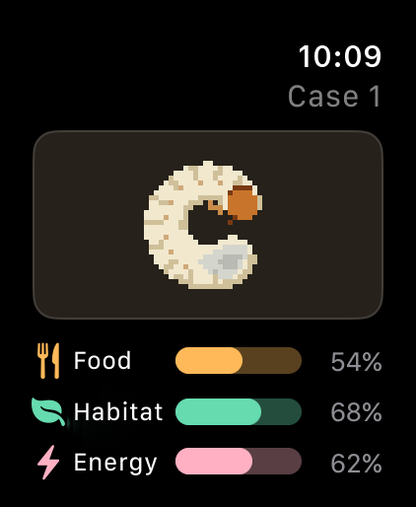
Apple Watch: check in at a glance 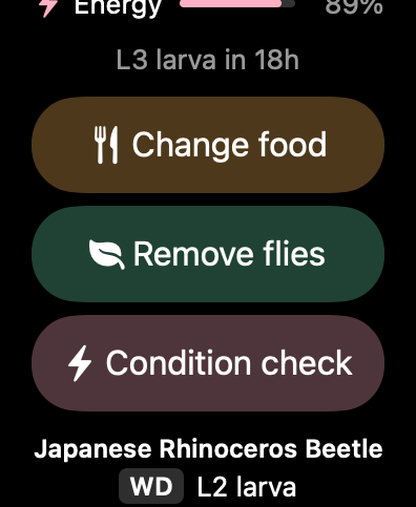
Give care right there
Widgets and Apple Watch work with the iPhone and iPad app. The Apple Watch app needs KKLOG on your iPhone.
In 7 languages, for breeders worldwide
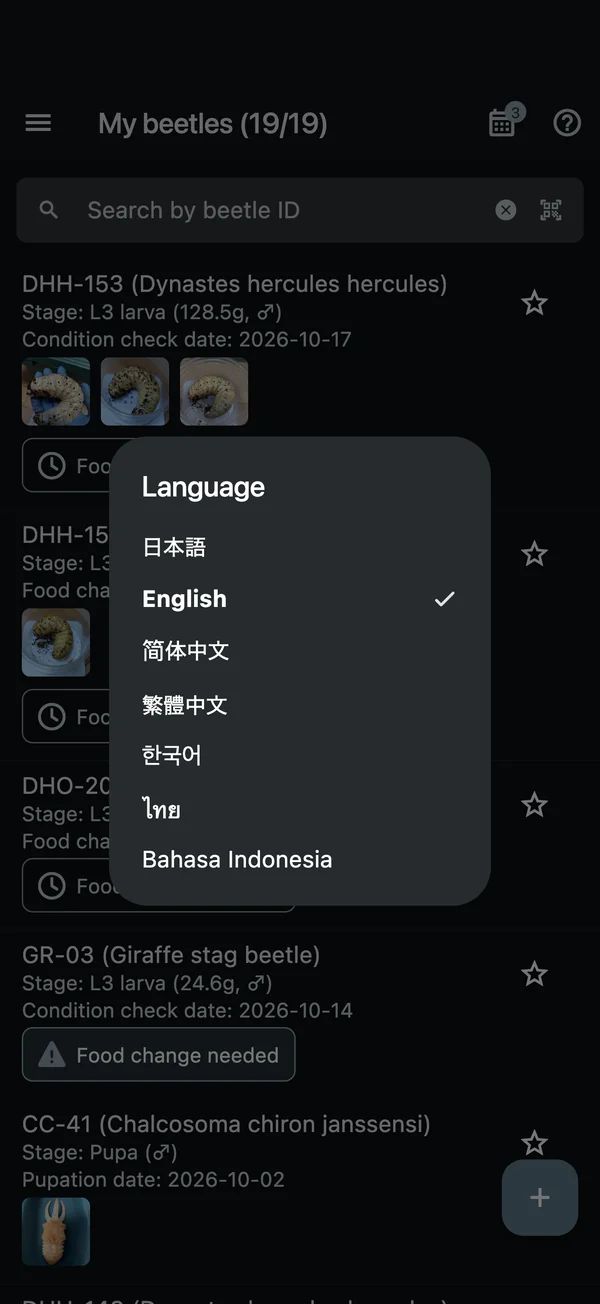
KKLOG is available in seven languages. The first time you open it, it uses your device’s language (or English if yours isn’t one of the seven), and you can switch anytime from “Language” in the menu.
- Japanese
- English
- Simplified Chinese
- Traditional Chinese
- Korean
- Thai
- Indonesian
Species names are shown in each language too, with their scientific names alongside.
New phone, same records
The beetles and logs you add are saved to the cloud. On a new phone, log in with the same account and pick up right where you left off.
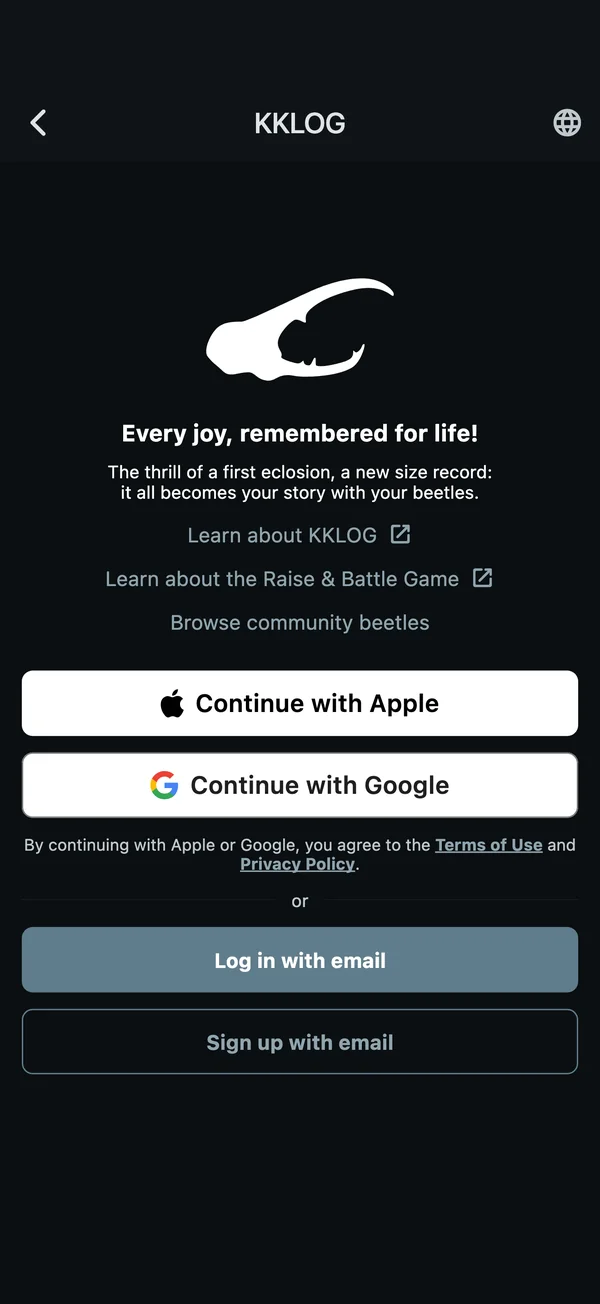
- Apple, Google or email
Log in with any of them. In “Account settings”, you can link or unlink Apple and Google, or delete your account.
- On a computer, use the web version
In the web version, log in with the same account to see the same records in your browser.
KKLOG Plus
KKLOG is free to use. Adding beetles and logs, the larva growth chart, label printing, the Schedule calendar and notifications, breeding memos, Community beetles and the Raise & Battle Game are all free. The paid plan, “KKLOG Plus”, adds the following.
- No ads
The app shows no ads.
- Raise 2 beetles at once in the Raise & Battle Game
You get two cases, plus more battles and more daily food. Items that help with care and battles also arrive every week.
- No limit on beetles
No limit on how many beetles you can add.
- No limit on listings
No limit on how many beetles can be “Listed” at once.
- Search Community beetles
Find public beetles by species, locality, generation, stage and sex.
- Your own ID and profile photo
Choose your own profile ID and photo.
- No limit on follows
No limit on how many breeders you can follow.
- No limit on groups and templates
Create as many groups and templates as you like.
- Up to 50 photos per beetle, in higher quality
Up to 5 per beetle for free. With KKLOG Plus, photos are saved in higher quality.
- Save unlimited label layouts
Save as many layouts of your own as you like (one for free).
KKLOG Plus is an auto-renewing subscription you can sign up for in the iPhone and Android apps (not in the web version).
Frequently asked questions
Is it free?
Yes. Downloading the app, keeping records, printing labels and the Raise & Battle Game are all free. On the free plan, the app shows ads. There’s a limit on how many beetles you can register, which you can raise with “Add beetle slots” in the menu. KKLOG Plus has no limit.
What paper should I use for beetle labels?
You can print on A4 label sheets (12 or 24 labels). To be safe, do a test print on plain paper first with “Print outlines” turned on, and lay it over a label sheet to check the position. If it’s off, fix it with “Print position”.
Where are my records saved? What if I change phones?
Your records are saved to the cloud. On a new phone, log in with the same account (email, Google or Apple) and pick up right where you left off. You can also see the same records in the web version.
Are there differences between iPhone, Android and the web version?
- Widgets and Apple Watch are for iPhone and iPad only.
- The web version doesn’t have photo uploads, notifications, the Stag & rhino beetle map or KKLOG Plus sign-up. Everything else, from records to the Raise & Battle Game, works in the web version too.
How do I change the language?
Switch between the seven languages from “Language” in the app’s menu. If you’re logged in, your choice is saved to your account too.
How do I cancel KKLOG Plus?
KKLOG Plus is an App Store or Google Play subscription. It can’t be canceled in the app, so please cancel it in your store’s settings.
- iPhone and iPad: Settings app › [your name] › Subscriptions › KKLOG › Cancel Subscription
- Android: Google Play Store › profile icon › Payments & subscriptions › Subscriptions › KKLOG › Cancel subscription
How do I delete my account?
You can delete it from “Account settings” in the app’s menu. For details, see About account deletion (in Japanese).
Where can I send feedback or report a bug?
Send it from “Feedback & bug reports” in the app’s menu. We post news on X (@wildstarbeetles).
Get started with KKLOG
Download it free from the App Store or Google Play. You can also use the web version in your browser with the same account.
- App StoreiPhone and Apple Watch
- Google PlayAndroid
- Web versionIn your browser
The web version has no notifications. Photos can be uploaded from the iPhone and Android apps.